

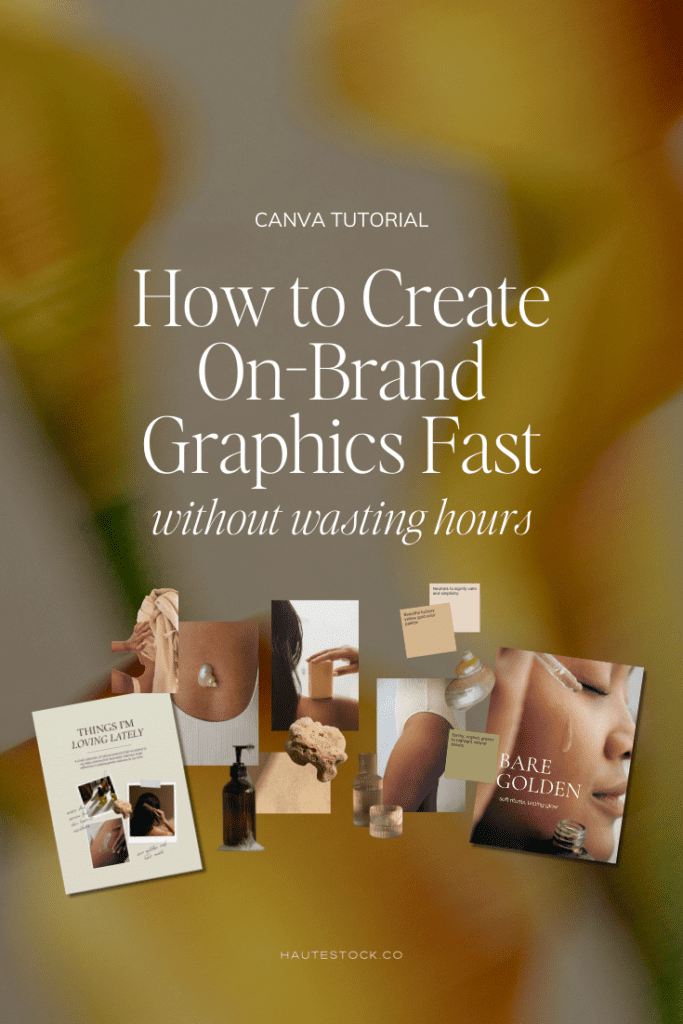
How Do You Design On-Brand Graphics Fast (Without Spending Hours in Canva)? Short answer: You need a repeatable system.
If you’re a coach, content creator, or creative entrepreneur, you don’t have hours to waste inside Canva tweaking fonts and second-guessing colors. You need scroll-stopping, professional graphics that instantly look like your brand that you can create in minutes.
In this guide, we’ll walk you through a simple, repeatable Canva workflow that will help you:
- Create consistent brand graphics fast
- Stop overthinking your designs
- Repurpose content like a pro
- Build recognizable brand visuals
And yes, you can do this even if you’re “not a designer.”
Step 1: Gather Your Brand Elements (Your Design Toolbox)
Before you open Canva, organize your visual foundation.
This is where most entrepreneurs go wrong. They start designing without clarity, and that’s why it takes forever.
What You Need in One Place:
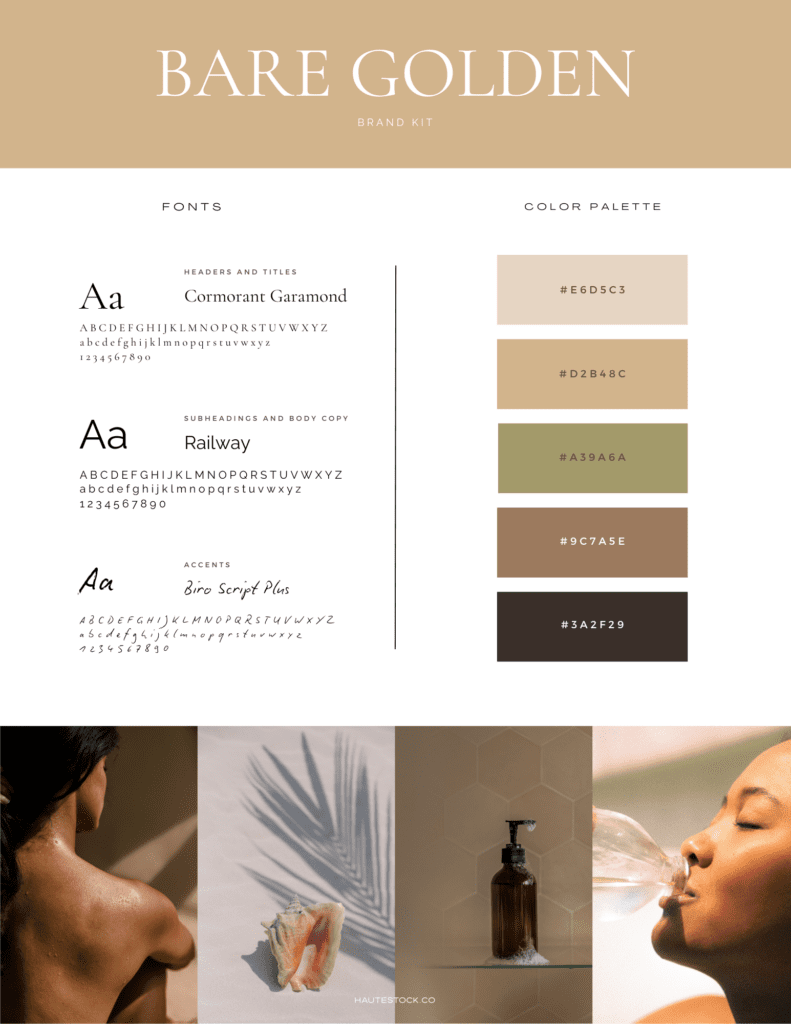
- Your primary and secondary logos
- Brand color palette (HEX codes saved)
- Brand fonts
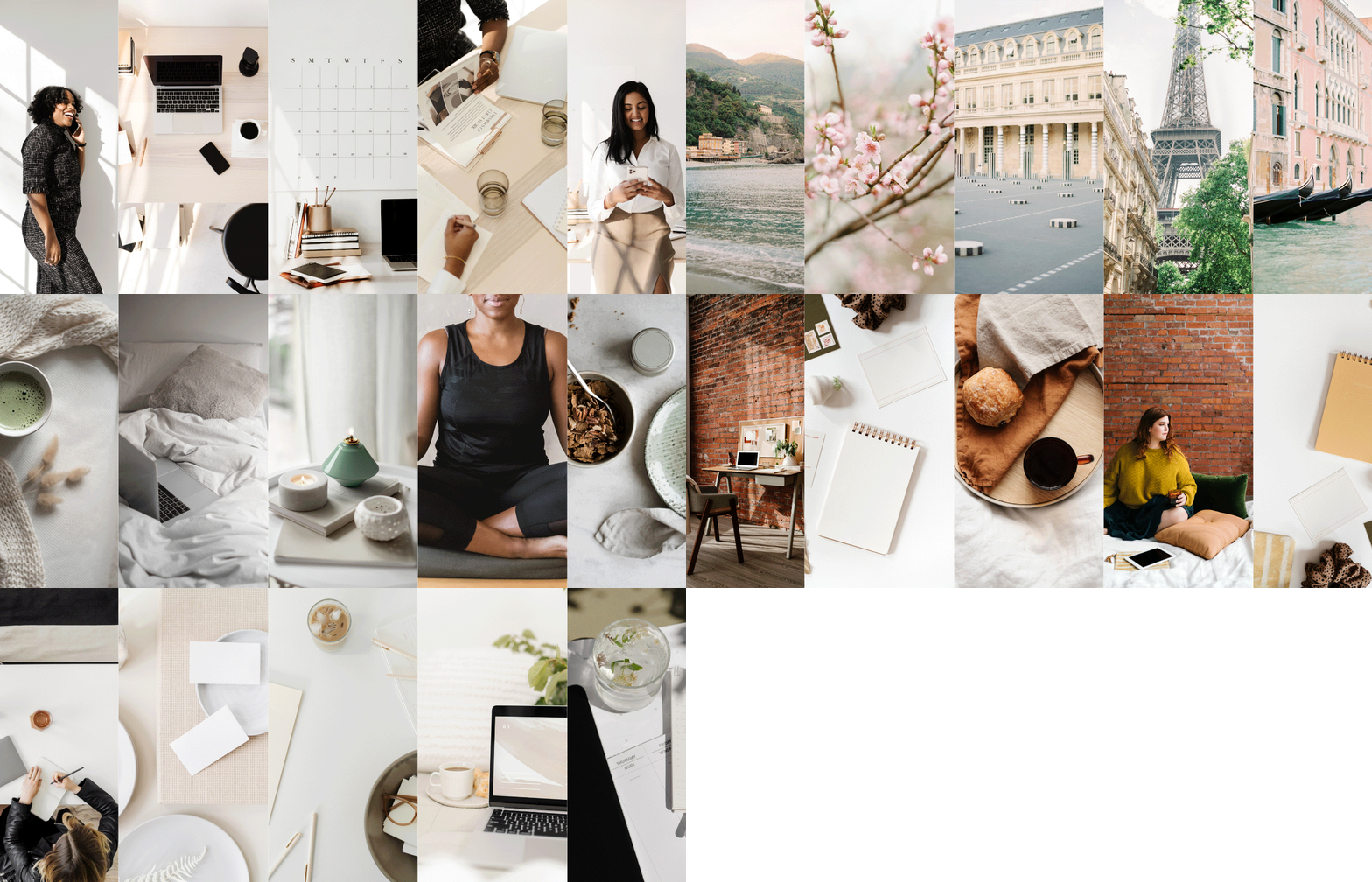
- A curated set of on-brand stock photos (we recommend getting them from Haute Stock 😘)
- Any recurring graphic elements (icons, textures, shapes)
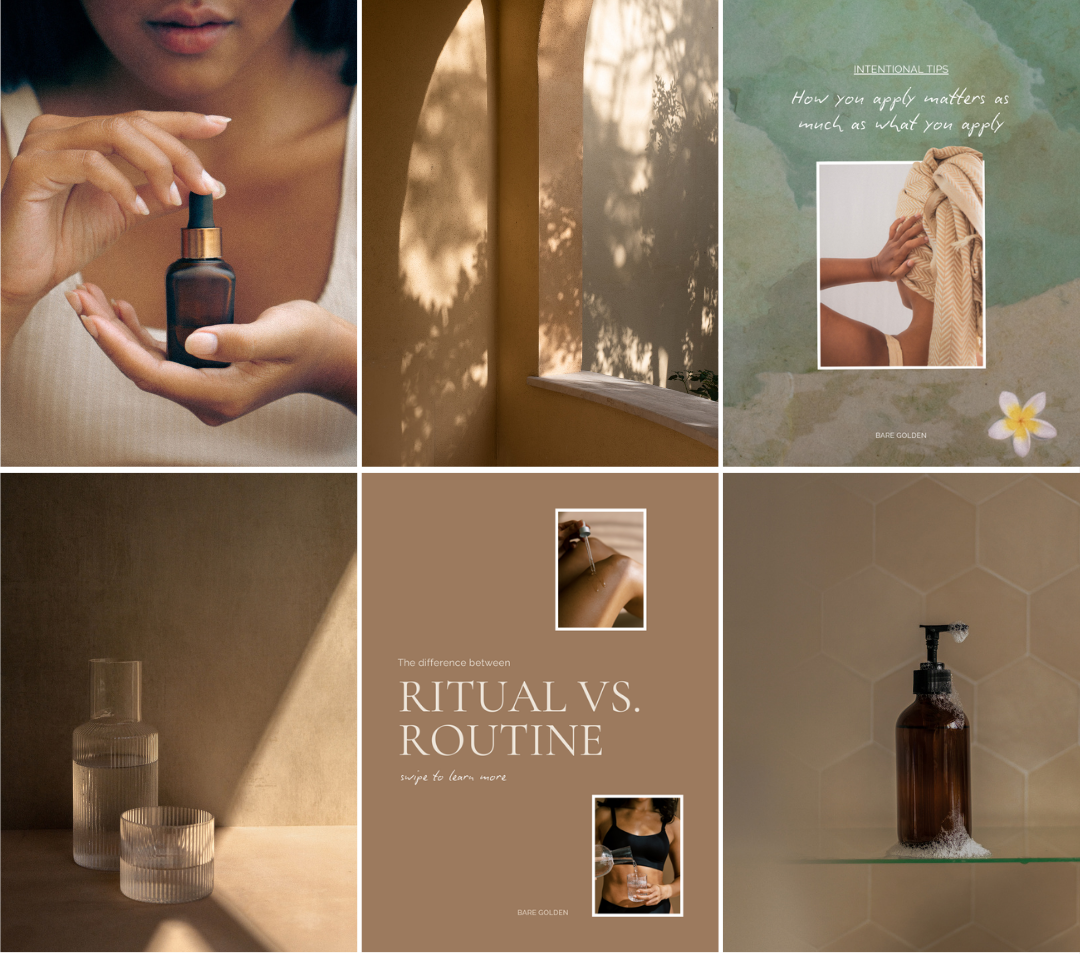
Your imagery matters more than you think. Consistent photo styling is often what makes a brand instantly recognizable.
If you’re a Haute Stock member, you can curate a collection of cohesive stock images from our styled library, download them, and upload them into organized Canva folders. No more scrolling random stock sites every time you need a photo.
Pro Tip: Create a simple Brand Style Guide. It acts as a cheat sheet so you (or your VA or team) can design consistently every time.
Step 2: Set Up Your Canva Brand Kit (This Saves HOURS)
If you’re using Canva and haven’t set up your Brand Kit, this is your sign to do it now!
Inside Canva:
- Upload your logos (use PNG files with transparent backgrounds)
- Add your brand color palette
- Upload your brand fonts
- Organize photos and elements into folders
When everything lives inside your Brand Kit, you eliminate decision fatigue.
Once your Brand Kit is set up, Canva allows you to “shuffle” your brand colors onto a design in one click. You can keep clicking to cycle through combinations specifically generated from your palette. This instantly transforms generic templates into something that looks custom.
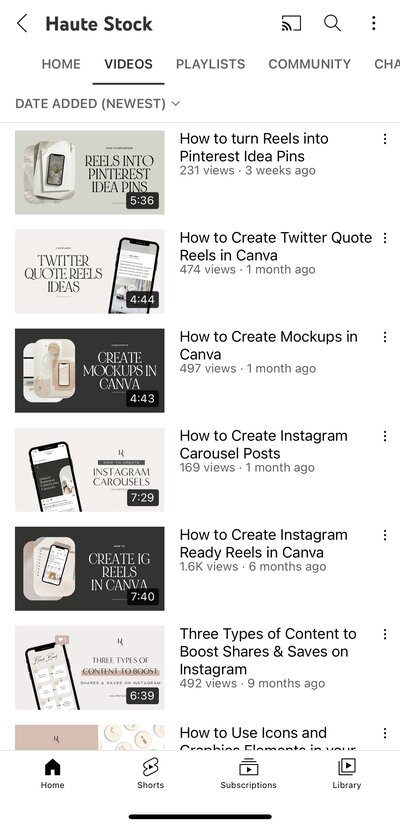
Watch us Create a Brand Kit in this Video
Step 3: Start With High-End Templates
Staring at a blank Canva page? That’s where time disappears. Instead, start with a professionally designed template. But not just any template, you have to choose strategically.
What to Look For in a Template
1. The Overall Vibe
Ignore colors at first and just focus on aesthetic.
Does the layout feel:
- Clean and modern?
- Feminine and elegant?
- Bold and vibrant?
- Editorial and minimal?
Choose a template aligned with your brand’s energy so you don’t have to redesign it from scratch.
2. Your Content + Platform
When you’re searching for templates, ask yourself:
- Is this for Instagram?
- A Pinterest Pin?
- A blog header?
- A carousel?
- A promo graphic?
The layout should support your message without you having to make a ton of changes to make it work.
Inside the Haute Stock membership, you can quickly search designer Canva templates created specifically for female solopreneurs. They’re structured to look elevated and convert so you’re not guessing what “looks good.”
How to Customize Fast
Once you choose your template:
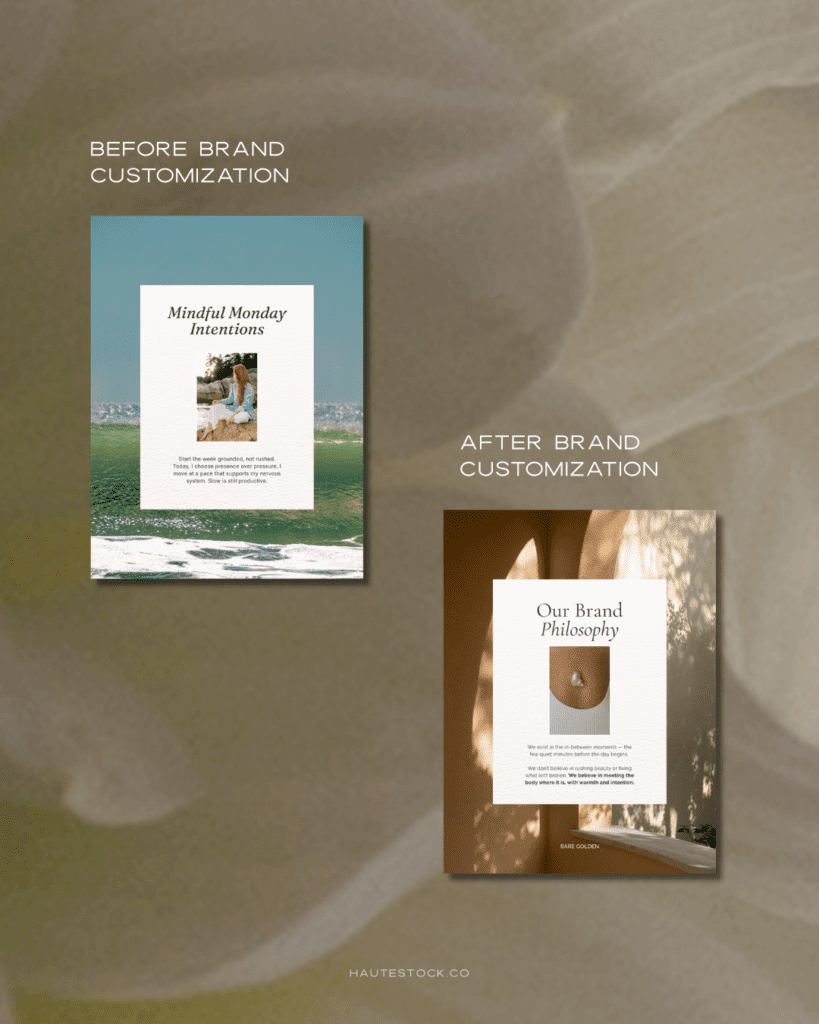
- Use Brand Shuffle to apply your colors
- Swap in your brand fonts
- Replace imagery with your curated on-brand photos
- Keep the layout structure intact as much as possible
If you follow these steps, you’ll be done in minutes without sacrificing professionalism.
Step 4: Repurpose Long-Form Content Into Multiple Graphics
Here’s where smart entrepreneurs multiply their visibility.
Have a: Blog post? Podcast episode? YouTube video?
Break it down into bite-sized graphics. For example:
- Turn one strong quote into a single post
- Convert 3 tips into a carousel
- Highlight one “hot take” into a Reel
- Create an email header graphic to promote content
You can use Canva’s Resize tool to instantly adapt your design across platforms. Instead of creating 5 designs from scratch, you create one and resize.
Why this matters:
- Different platforms = different audiences
- Algorithms push content differently
- More visibility without more work
Step 5: Build a Bank of Reusable Brand Templates
Consistency doesn’t mean constant reinvention. Once you land on designs you love, reuse them!
Create a small suite of go-to templates:
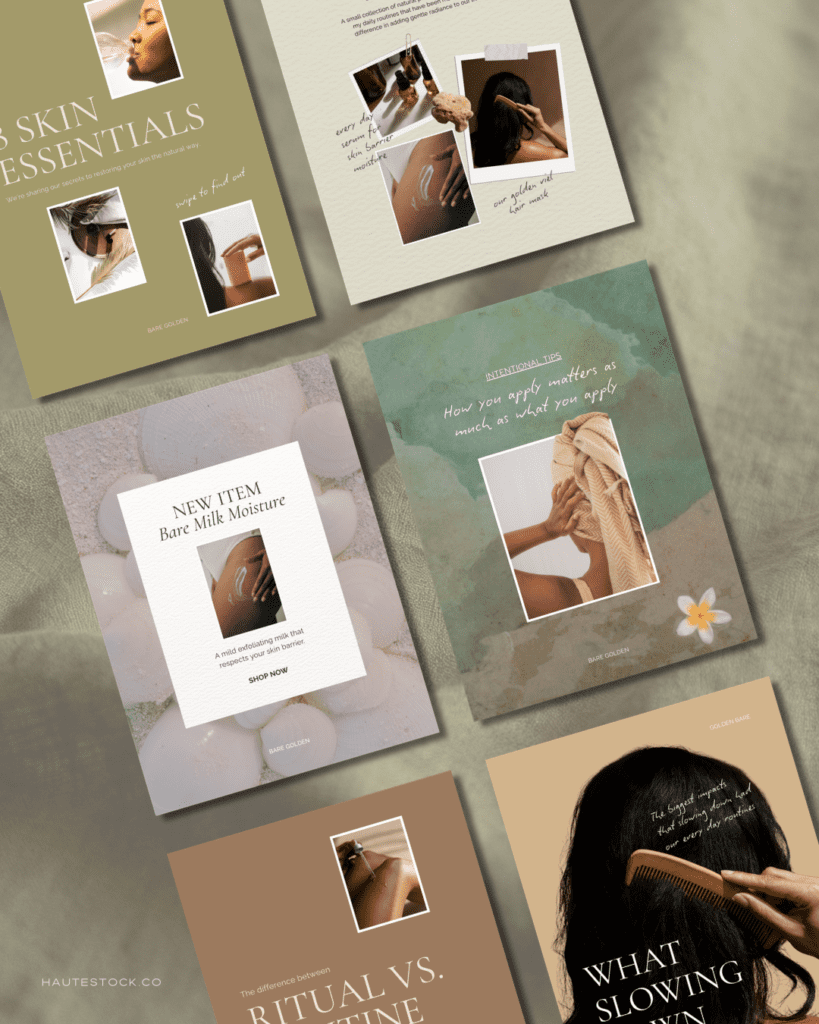
- Blog post graphic template
- Instagram carousel template
- Testimonial template
- Quote graphic template
- Launch promo template
Now instead of designing from scratch, you’re just: plugging in new copy, swapping in fresh imagery, and updating minor details
This creates visual recognition that builds trust. Focus on refreshing layouts every few months not every single post.
Watch our Process in Detail
Frequently Asked Questions
How do I make my Canva designs look more professional?
Start with professionally designed templates (like the ones inside the Haute Stock membership), use consistent brand fonts and colors, and avoid overcomplicating layouts. Simplicity reads as premium.
Do I need Canva Pro to create on-brand graphics fast?
Canva Pro helps significantly because of the Brand Kit, Resize tool, and Brand Shuffle feature. It saves time and improves consistency.
How many brand templates should I have?
Start with 4–6 core templates for your most-used content types. Expand only when necessary.
Why is brand consistency important on social media?
Consistent visuals build recognition, trust, and authority. When people recognize your content instantly, engagement increases.
Tools to Make This Even Easier
If you want to skip the guesswork completely, the Haute Stock Membership gives you:
- Thousands of styled stock photos
- Curated stock videos for you socials
- Designer Canva templates that are exclusive to our members
- Marketing guides and playbooks
- A cohesive, elevated aesthetic built for female entrepreneurs
Everything is designed to help you create scroll-stopping, on-brand content in minutes. If you’re tired of tweaking fonts and second-guessing your visuals, this is your shortcut.
Key Takeaways
- Designing on-brand graphics fast requires a system — not talent
- Organizing your Canva Brand Kit is the biggest time-saver
- Start with high-quality templates instead of blank pages
- Repurpose one design across platforms using Resize
- Reuse your templates to build recognition and consistency